

Exhibitor guide
Accept a company invitation, set up your company profile and crew, scan visitor leads, complete the survey and export your leads.
Who this is for: the exhibitor company owner (the person who accepts the company invitation), an invited manager, and exhibitor crew (staff) who scan visitors at the booth. An exhibitor company is not an organiser and does not use Studio.
Where to sign in: xperience.my/work for invitations and the booth scanner, and partner.xperience.my/exhibitor for the company page, crew and leads. Use the exact email the invitation was sent to.
This page is the short version for each person. The full runbook, including the organiser's side and troubleshooting, is Exhibitor onboarding. Survey set-up is in MATRADE surveys.
Accept the invitation (owner)
- Sign in at xperience.my/work with the invited email. Another address, or a Google account with a different email, cannot see the invitation.
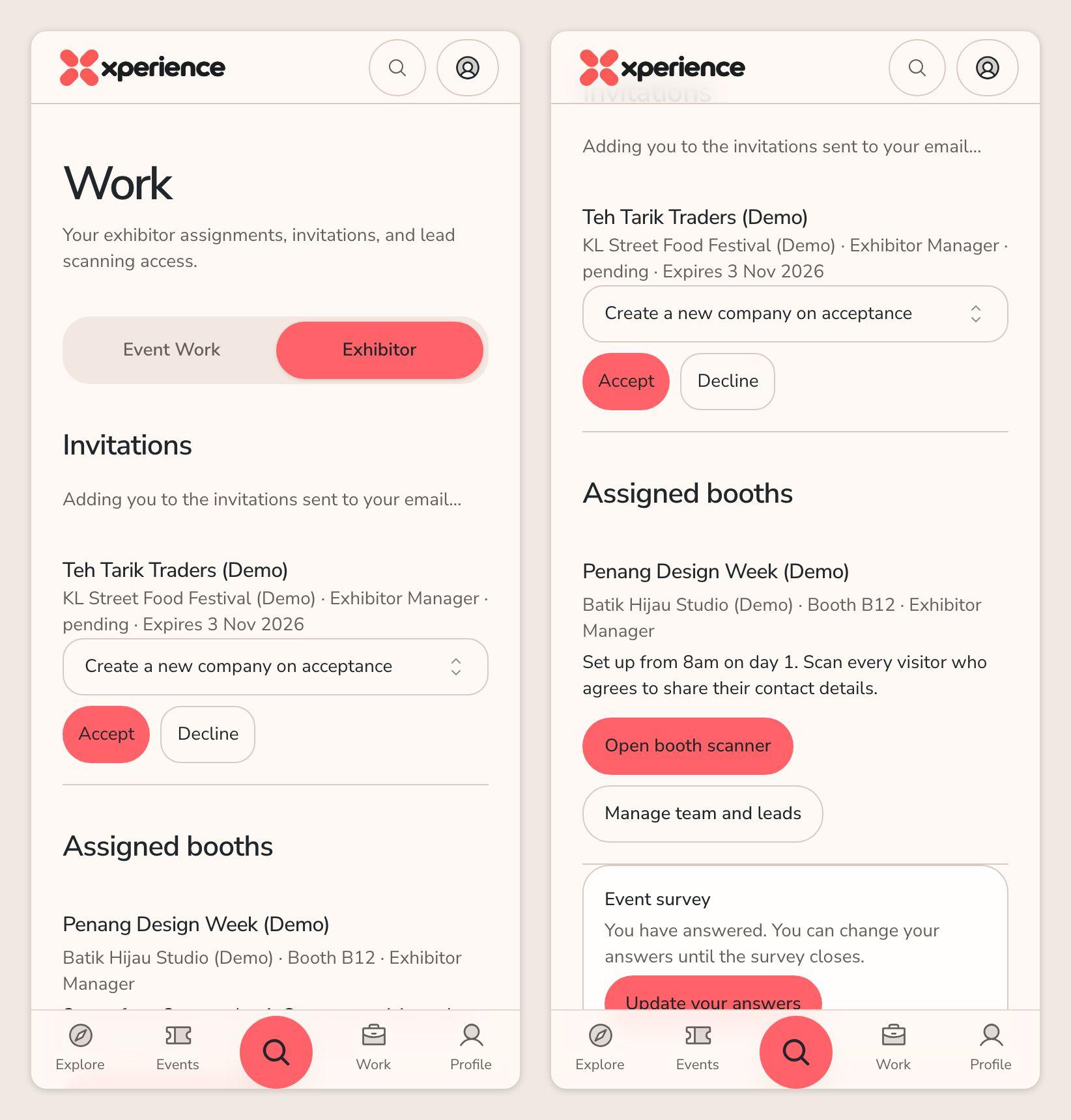
- Open the Exhibitor tab of Work (xperience.my/work/exhibitor). If your email is verified, it accepts the invitation for you: it shows "Adding you to the invitations sent to your email…", then a confirmation.
- If it could not add you, the invitation stays under Invitations. Choose Accept. If you already own a company, use Use company to attach this event to it. Otherwise leave Create a new company on acceptance.
- The booth appears under Assigned booths with its booth label, instructions and your role. You are now the company owner for this event.
Invitations last seven days. If yours has expired, ask the organiser to invite you again.
Set up your company profile (owner)
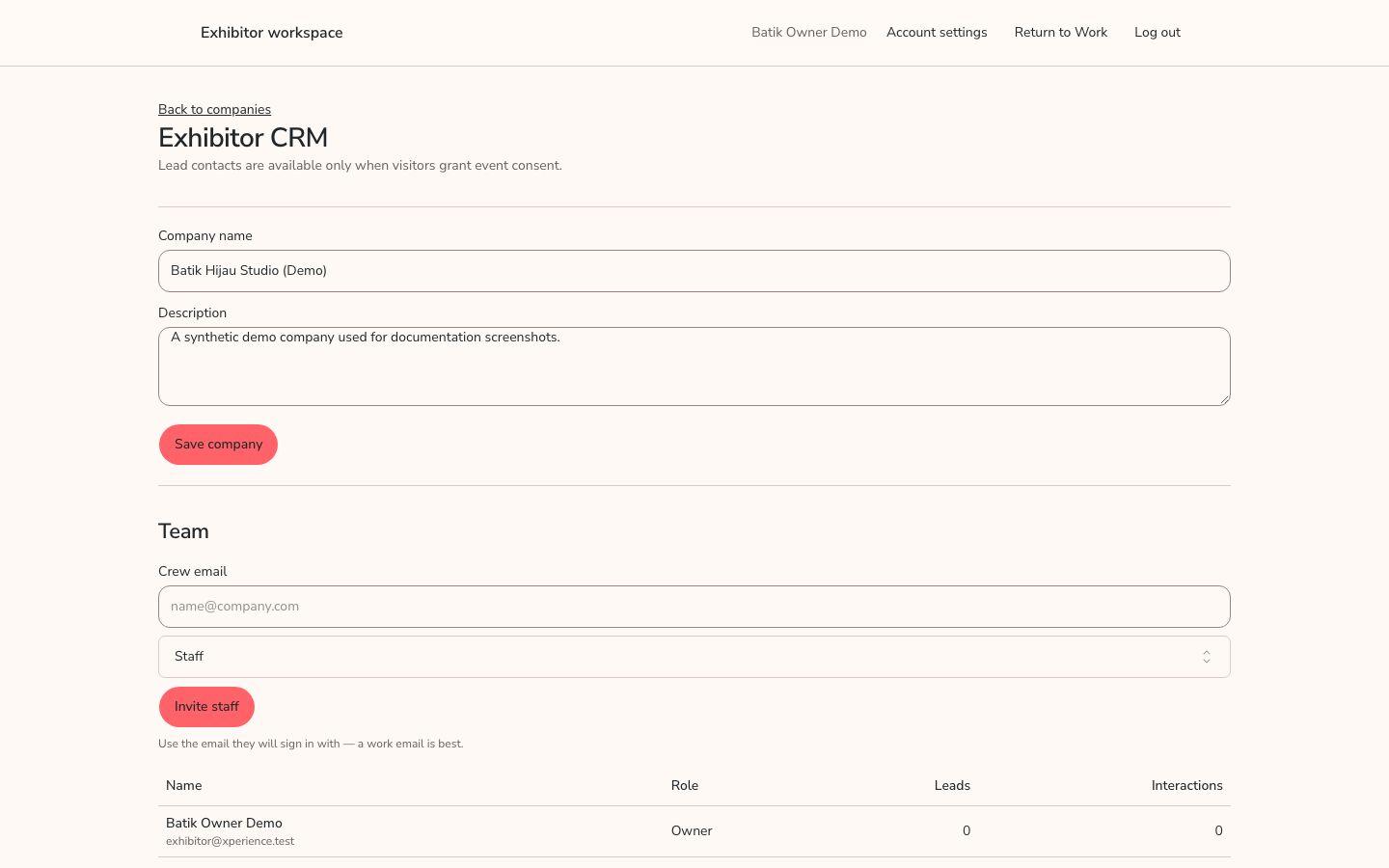
- On the booth card in Exhibitor work, choose Manage team and leads. The partner site opens Exhibitor CRM for this company and event.
- In the company form, edit Company name and Description.
- Choose Save company.
Only the company owner can edit the profile. To find your companies later, open the Exhibitor workspace page at partner.xperience.my/exhibitor, search, and choose Open CRM on a company.
Invite your crew (owner)
Only the company owner sees this form.
- On Exhibitor CRM, find Team.
- Enter Crew email. Choose Invite role: Staff for people who only scan, or Manager for a deputy who should also see performance and export leads.
- Choose Invite staff.
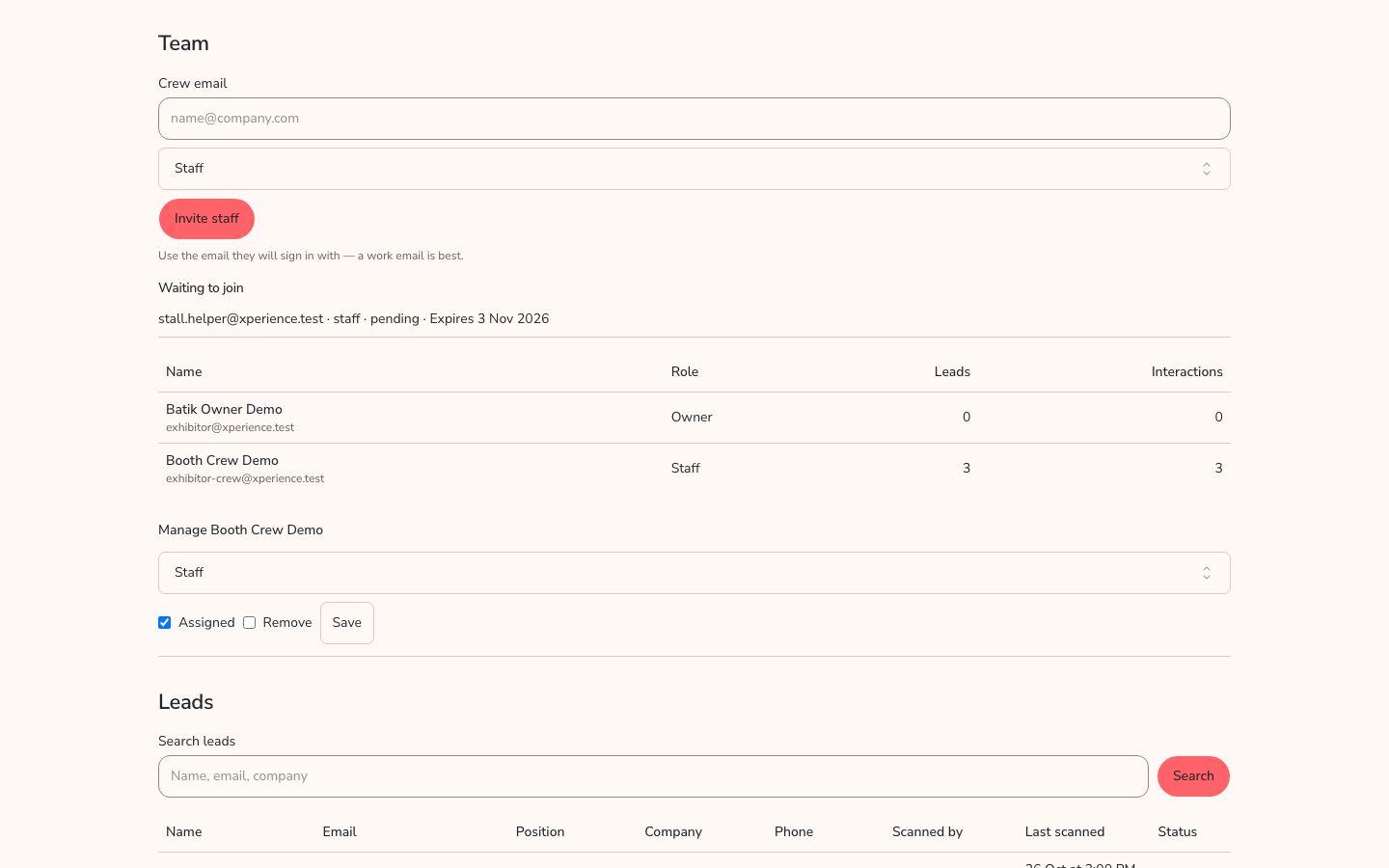
- Waiting to join lists invitations that have not been accepted, with an expiry. Invite the same address again if one has expired.
- Each crew member signs in at xperience.my with their own email and opens the Exhibitor tab of Work. A verified email is added automatically; otherwise they choose Accept.
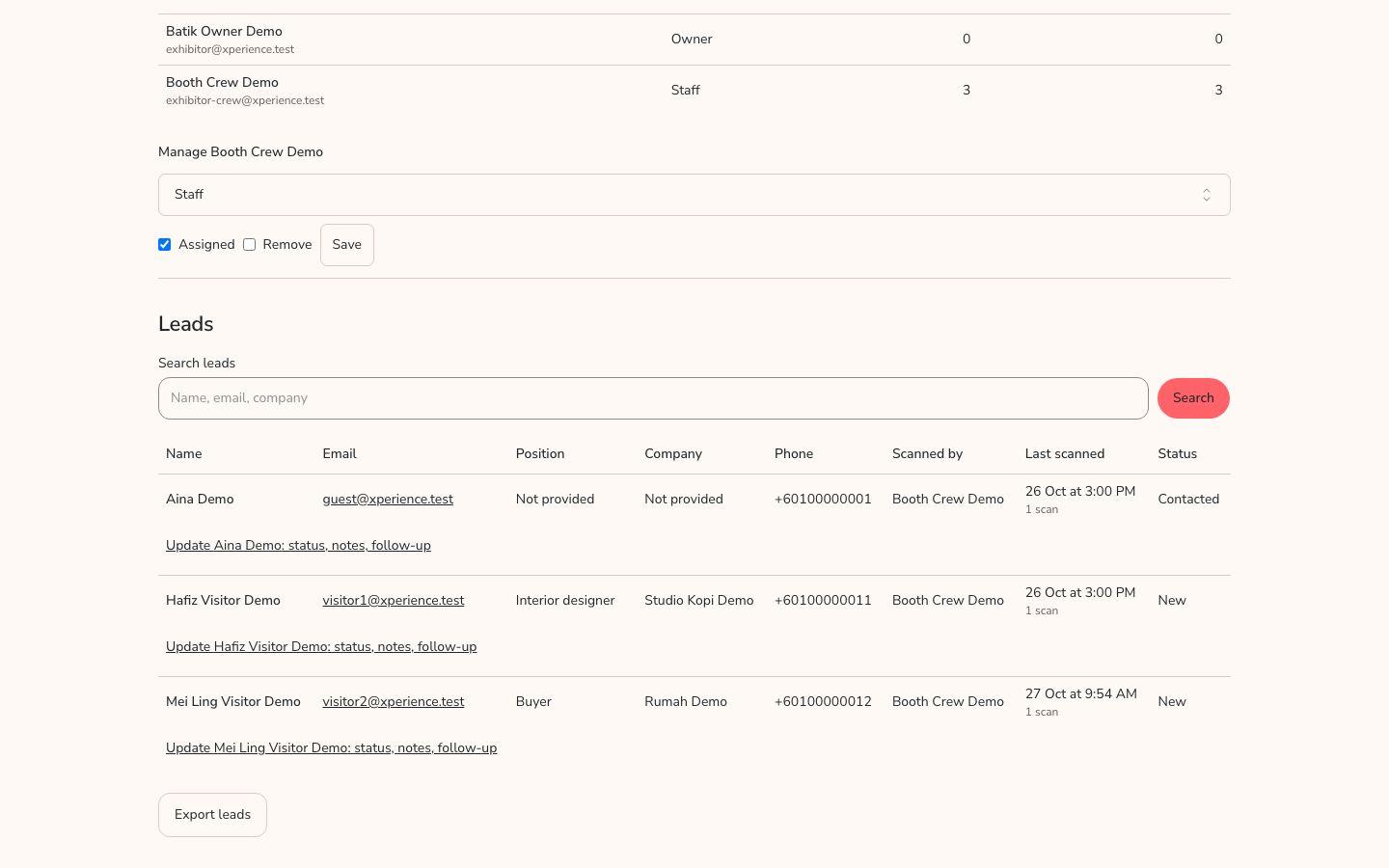
To change someone, use Manage beside their name. You can change their Team role, untick Assigned to stop them scanning at this event, or tick Remove, then choose Save. Use one email per person. Shared accounts make the performance figures and each person's leads meaningless.
Scan visitor leads (crew, managers and owner)
Lead scanning needs a live connection. It never checks a visitor in at the door.
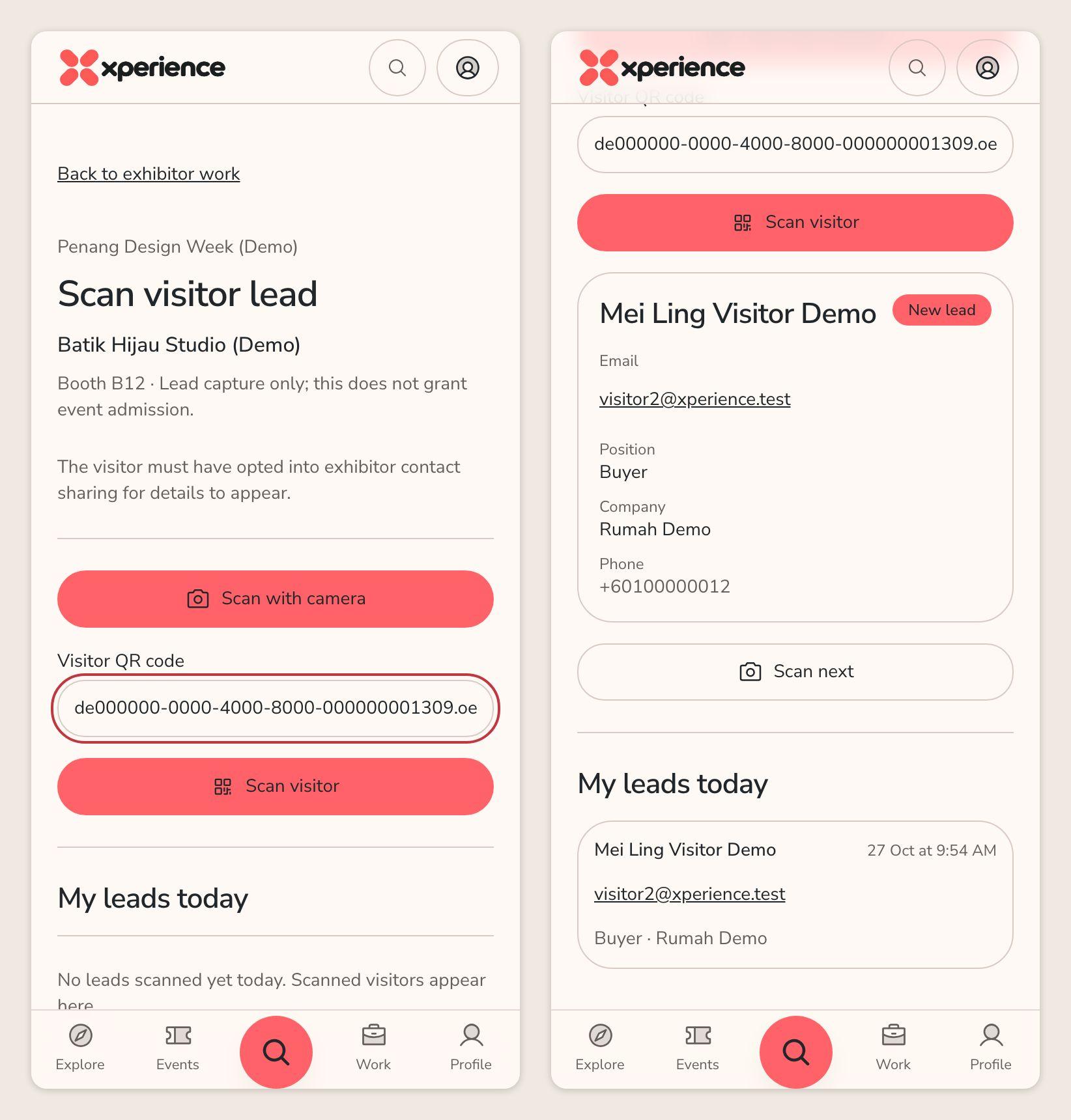
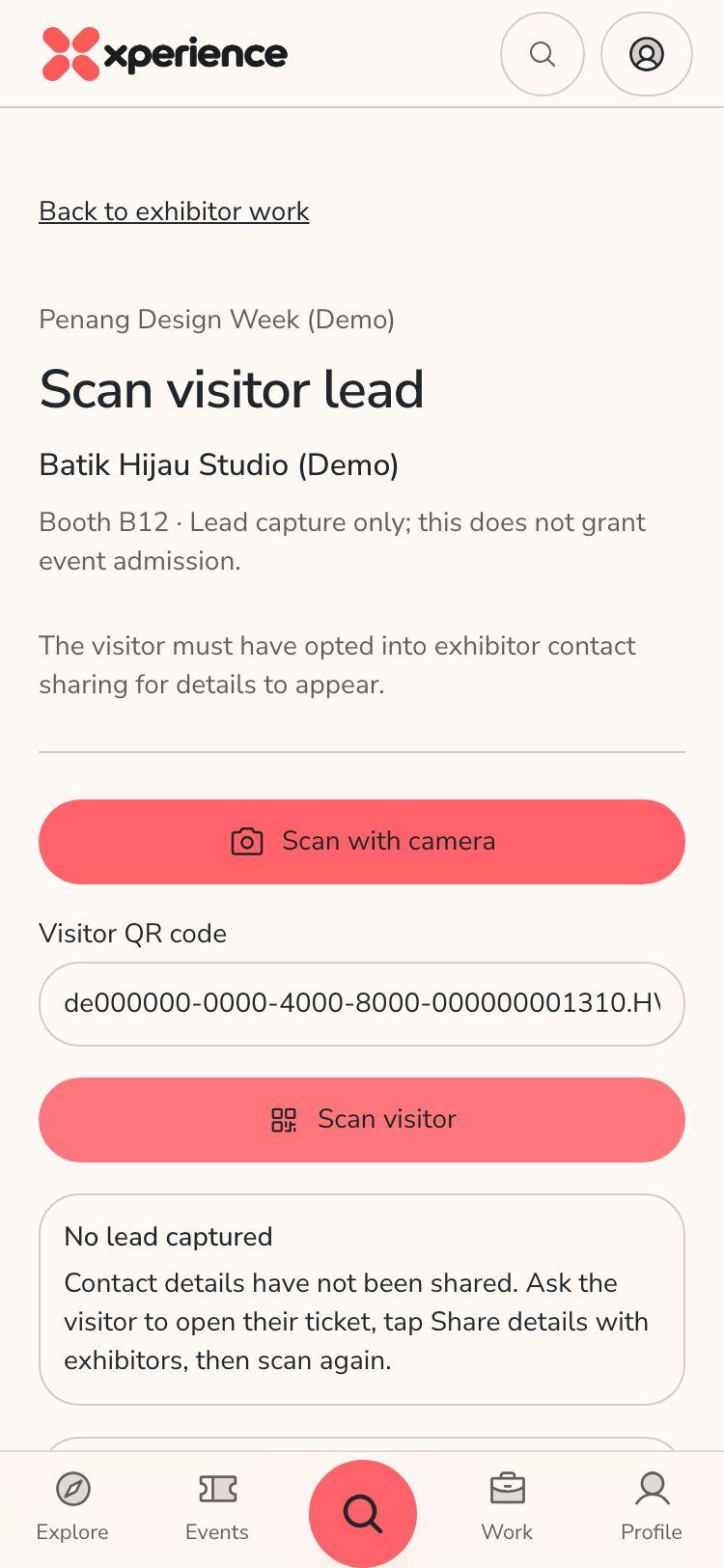
- Open Work and choose Exhibitor work. On your booth, choose Open booth scanner.
- The page is headed Scan visitor lead and says "Lead capture only; this does not grant event admission."
- Hold the visitor's ticket QR inside the camera frame. If the camera will not start, paste the code into Visitor QR code and choose Scan visitor.
- Read the result:
- A visitor card with New lead shows their name, email, position and company, and phone if they gave one.
- Repeat visit means they were already one of your leads. It does not create a duplicate.
- No lead captured means they have not shared their details. Ask them to open their ticket, choose Share details with exhibitors, then scan again.
- Choose Scan next for the next visitor.
"Reconnect before scanning. Visitor lead capture is online only." means there is no signal. Nothing is queued for later.
A visitor must switch sharing on themselves. See the guest guide.
Work your leads
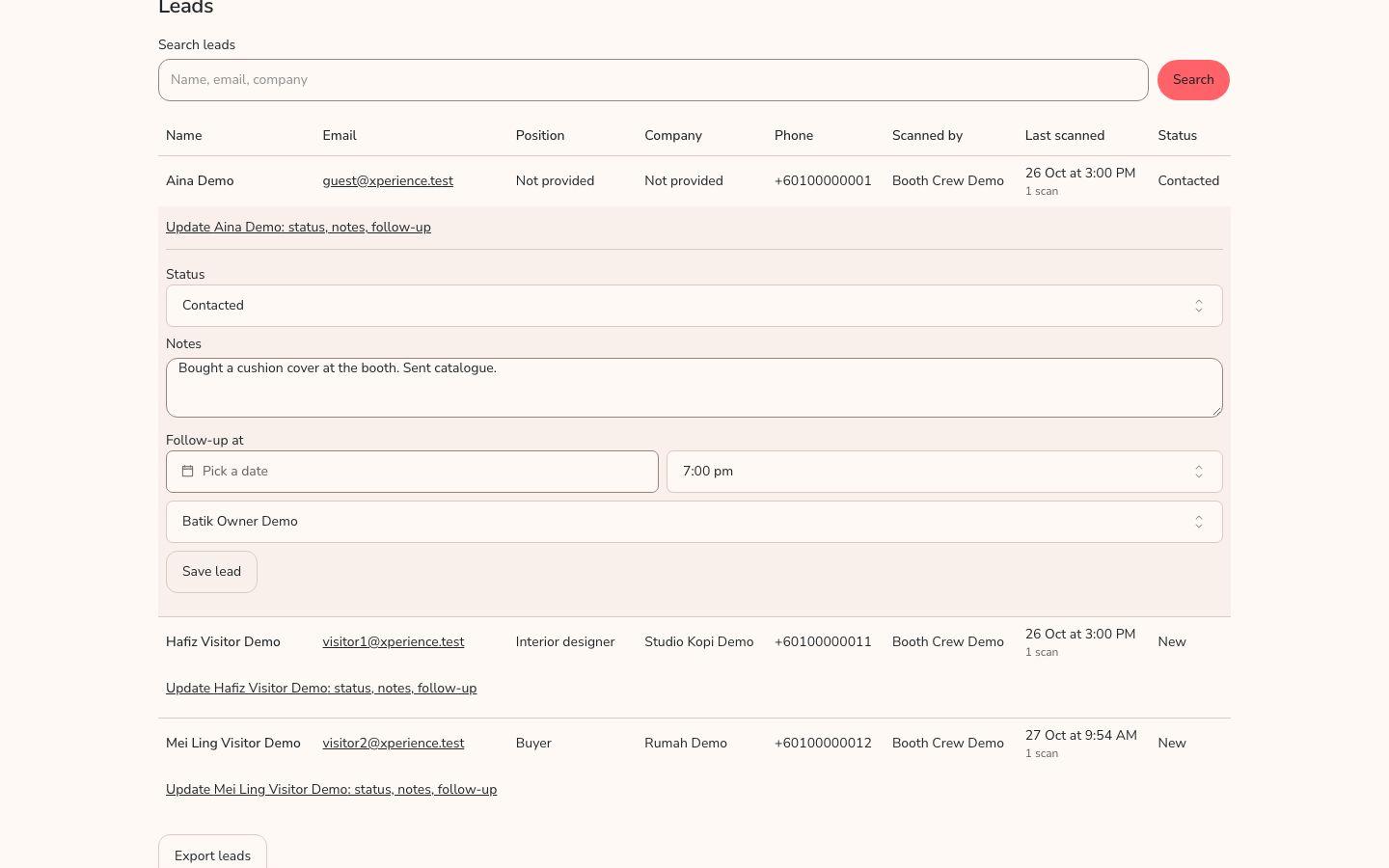
- On Exhibitor CRM, open Leads. Use Search leads to find a name, email or company.
- Update Status, Notes, Follow-up at and Assigned staff member, then choose Save lead.
- Crew see and update only the leads they captured or were assigned. Owners and managers see all leads.
- Team shows each person's Leads (different visitors) and Interactions (every scan, including repeats).
See how visitors answered the event survey (everyone)
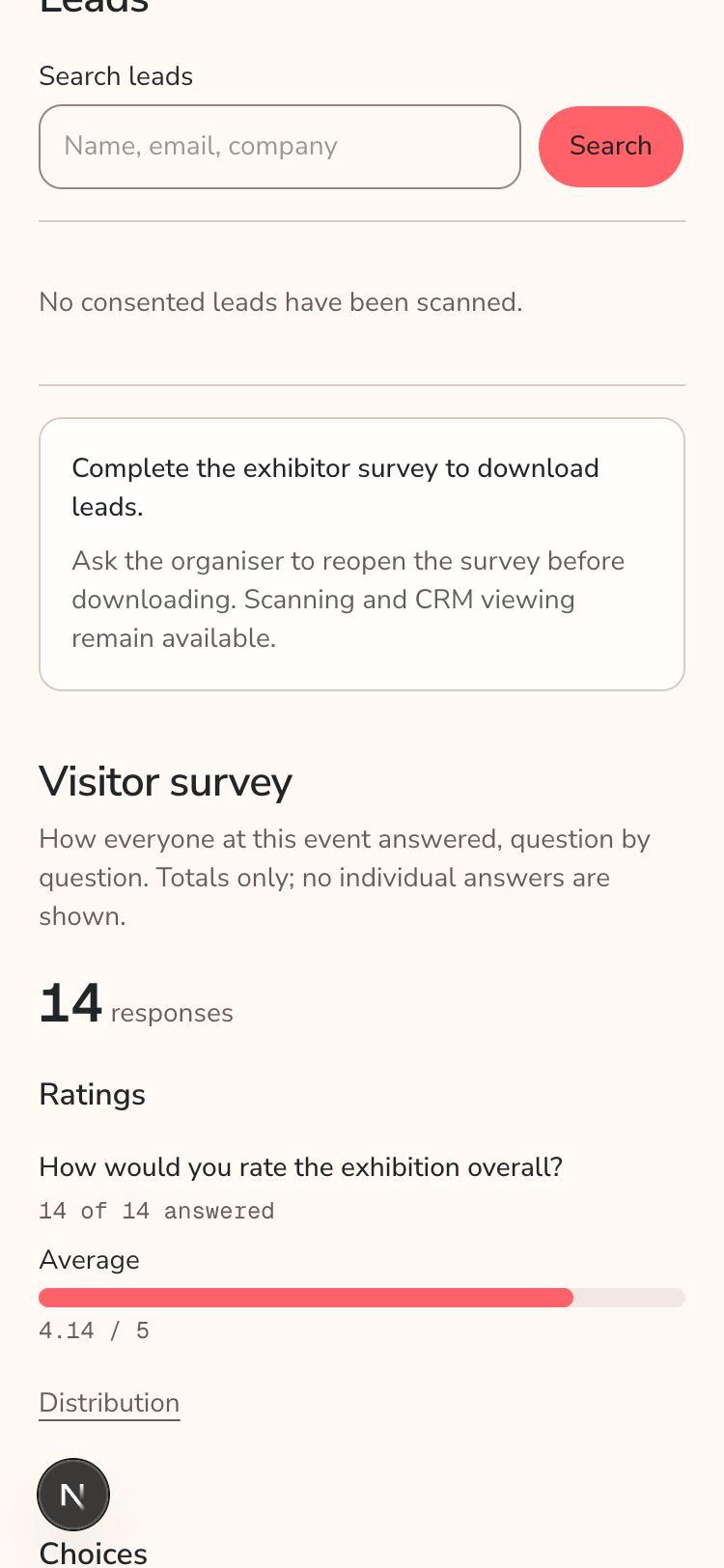
- On Exhibitor CRM, scroll past Leads to Visitor survey.
- The number at the top is how many visitors answered the event's visitor survey. It covers everyone at the event, not only your leads.
- Each question shows its own result: an average for ratings (open Distribution for the spread), and the count and share for each option of a choice question.
- Results appear once at least 10 visitors have answered. Written answers and the highest and lowest numbers are never shown, so no single visitor can be identified.
Complete the survey, then export leads (owner or manager)
The organiser must open the exhibitor survey. A company needs a saved response for the event before it can download its leads. Staff cannot submit the survey or export.
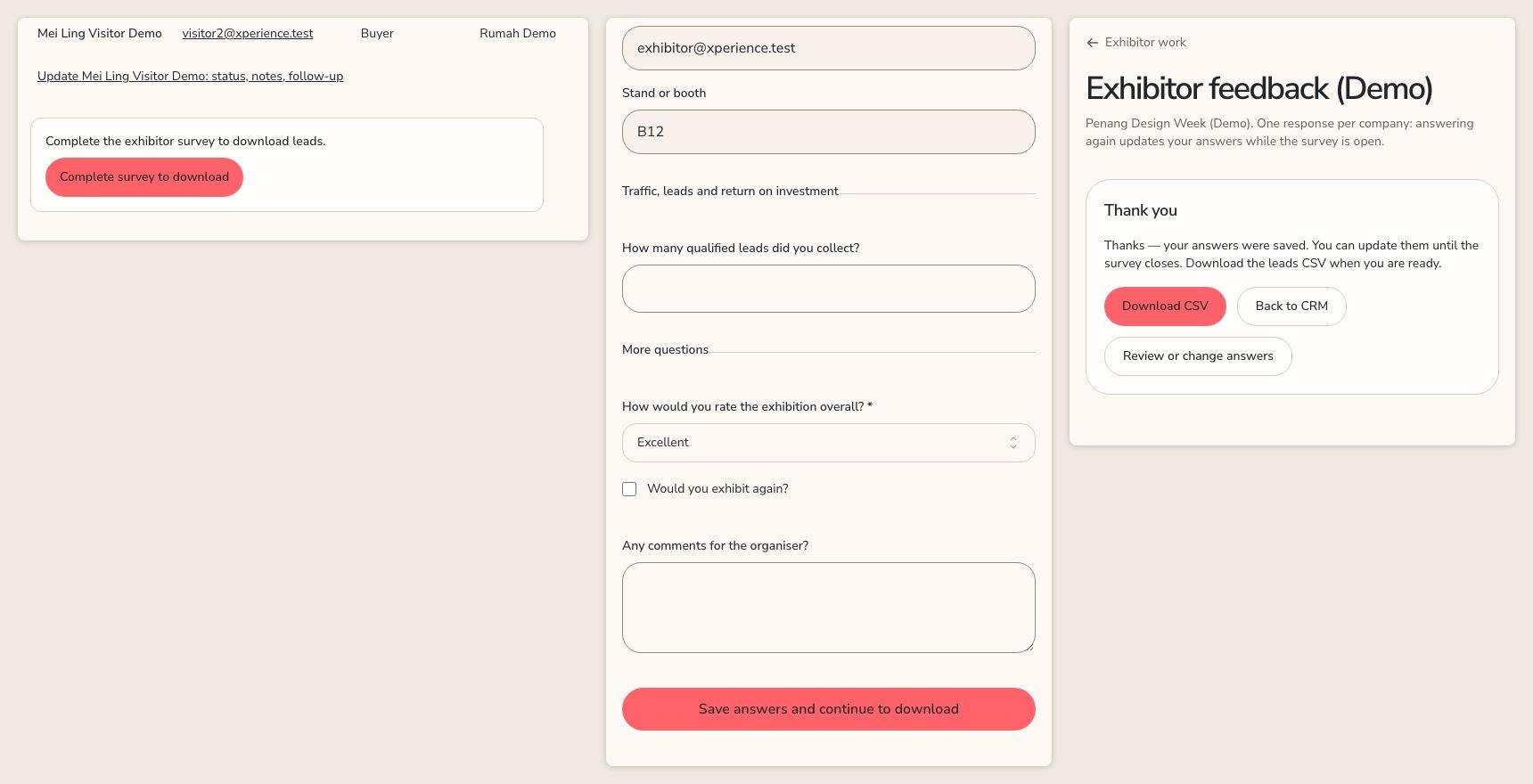
- On Exhibitor CRM, find the Leads section. Until your company has a response it says "Complete the exhibitor survey to download leads."
- Choose Complete survey to download. The company, contact and booth are filled in. Answer the required questions.
- Choose Save answers and continue to download.
- On the confirmation page, choose Download CSV. Choose Back to CRM to return to the same company and event. Your lead search is kept.
- Once a response is saved, Export leads appears on Exhibitor CRM and downloads the CSV directly. Answering again is optional.
- If the survey is closed or still a draft and you have no response, the page says to ask the organiser to reopen it. Scanning and viewing leads still work.
The export contains only visitors whose sharing is still on at that moment. A file you have downloaded cannot be recalled if someone later withdraws consent. Treat it as personal data.
Who can do what
| Action | Owner | Manager | Staff (crew) |
|---|---|---|---|
| Accept the company invitation | Yes | No | No |
| Accept their own crew invitation | n/a | Yes | Yes |
| Edit the company profile | Yes | No | No |
| Invite, change or remove crew | Yes | No | No |
| Scan visitor leads | Yes | Yes | Yes, if assigned |
| See all leads | Yes | Yes | Only their own |
| Submit the survey and export leads | Yes | Yes | No |