
Guest guide
Find an event, register, keep your ticket on your phone, answer the event survey and manage your account.
Who this is for: anyone who visits events, with or without an account.
Where to sign in: xperience.my on the web, or the Xperience native app. Browsing never needs an account. Registering does.
Related guides: For guests, Native app and Complete & Spin.
Find an event
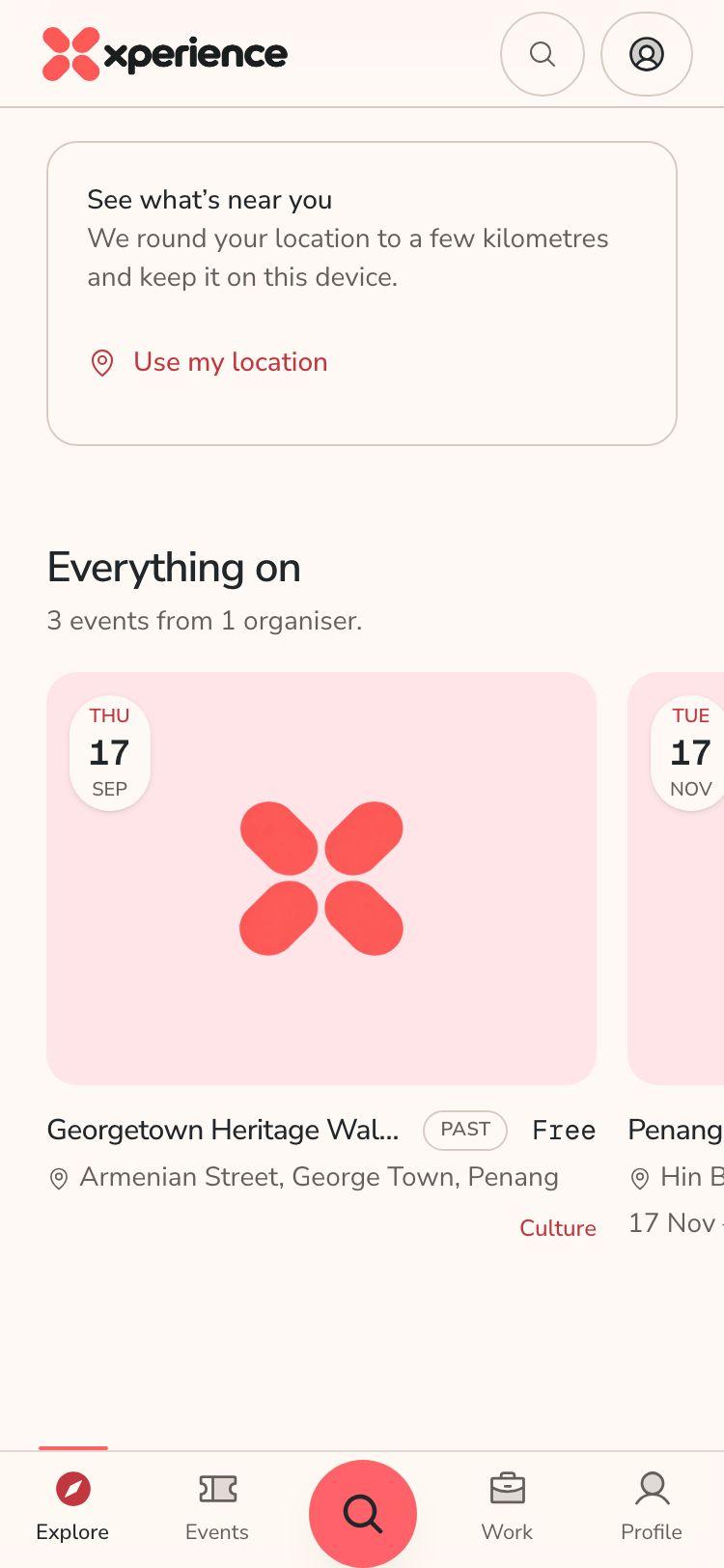
- Open xperience.my. The Explore tab lists events you can browse.
- Use Search events in the bottom bar to look for a name or venue.
- Open the Events tab to see Joined events and My events. On that page, use Search events and venues to filter the list.
- An event that has ended is labelled Past. You can still open its ticket, history and feedback links.
Sign in
You sign in with an email code. There is no password.
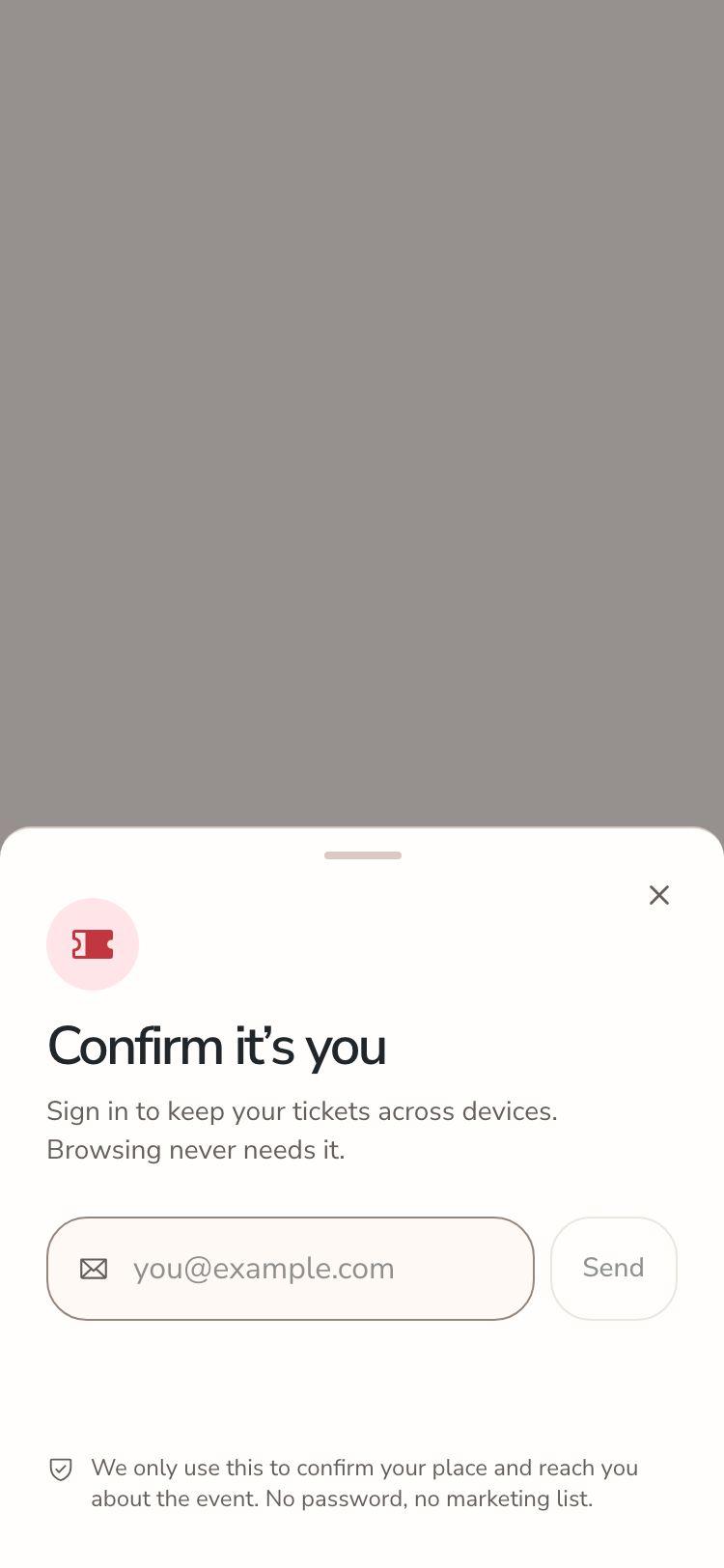
- When asked, the Sign in dialog opens with the heading "Confirm it's you".
- Enter your email in Email address and choose Send. Or choose Continue with Google if it is shown.
- Enter the six digits from your email under Enter your code. The page signs you in on the sixth digit.
- No code? Wait for the countdown, then choose Resend code.
Register for a free event
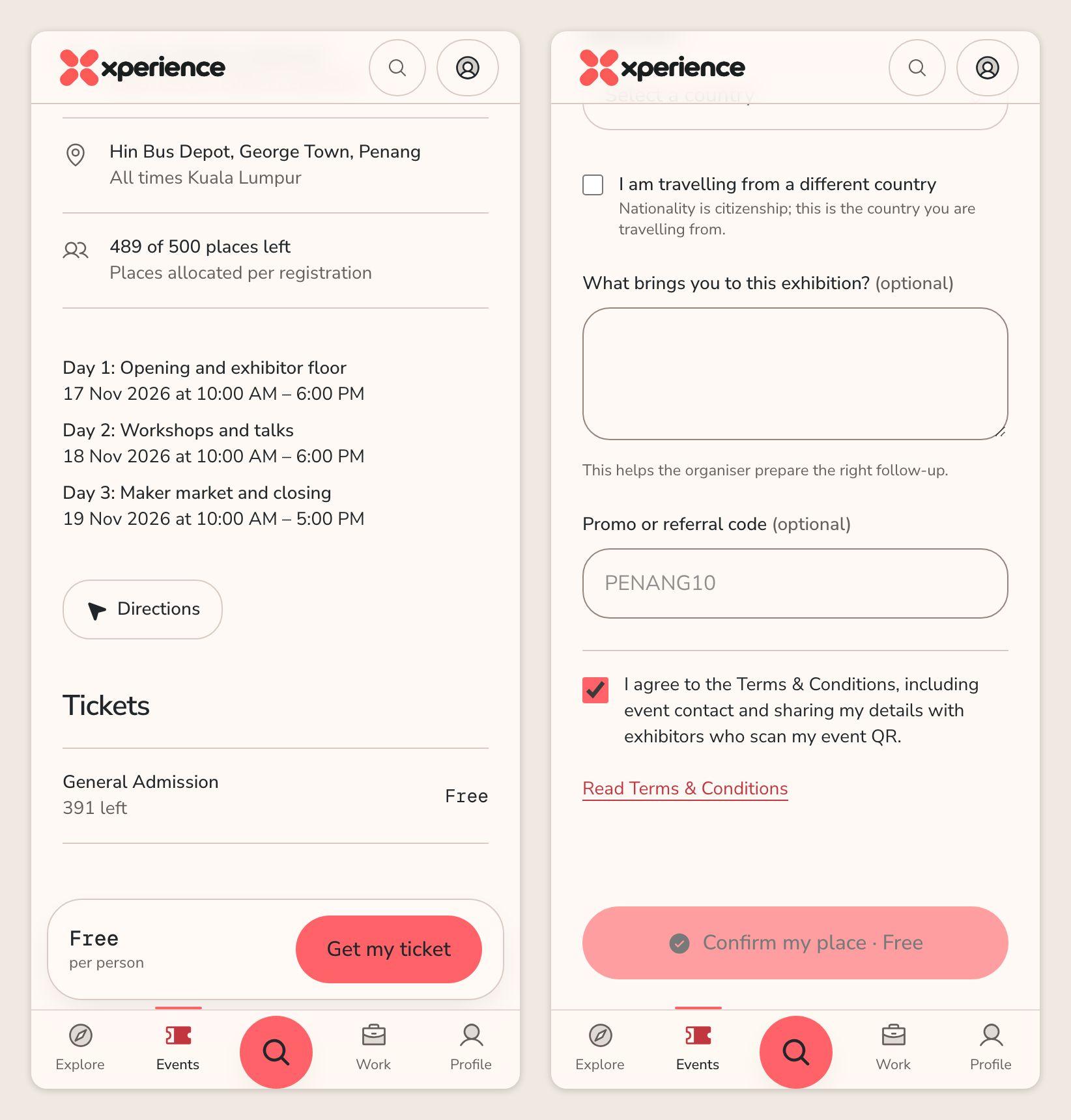
- Open the event page and choose Get my ticket.
- Fill in the form. At a trade event you are also asked whether you are attending for business: Yes, for work or No, personally.
- Add a promo code under Promo or referral code if you have one. It is optional.
- Tick the box to agree to the Terms and Conditions.
- Choose Get my ticket with the price beside it. A free ticket confirms straight away.
- If you registered before, the button reads Confirm my place and the form is already filled in.
Register for a paid event
Most passes you can pick on an event page are free. Paid passes are usually arranged by the organiser directly, outside Xperience: follow the event's instructions or contact the organiser, and they will issue the ticket to your account.
When an event does sell a pass on Xperience, the Get my ticket button takes you to a payment page on the web. The ticket is issued once the payment has arrived.
In the native app, paid-only events show Book on Xperience web instead of Register for this event. The app opens the web booking page for you. Web sign-in may be required. Your ticket appears in the app afterwards, under the same account.
Your ticket and the offline ticket
- After you register, open the event page and choose View my ticket.
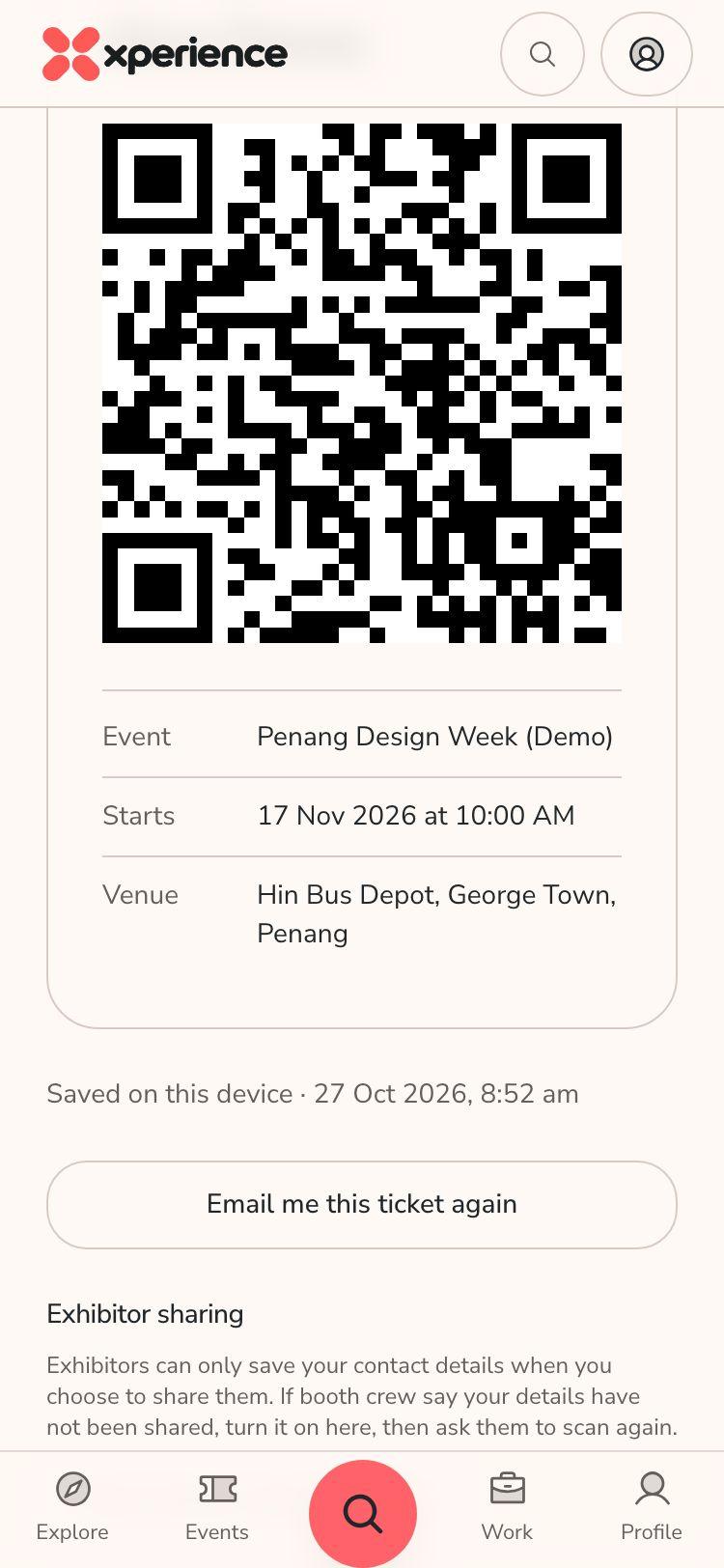
- Show the QR code at the door. You can also choose Email me this ticket again.
- Viewing a ticket saves it on this device, so it opens without a signal. The offline page lists Tickets, Event hubs and Door scanners that are saved on the device, with an Open ticket button for each.
- Open each ticket once while you are online. Do not clear your browser data before the event. A ticket you have not viewed on this device is not saved for offline use.
In the native app, saved tickets are encrypted, belong to your account and expire 24 hours after the event.
Answer the event survey
Some events run an exit survey. It is the same flow described in Complete & Spin.
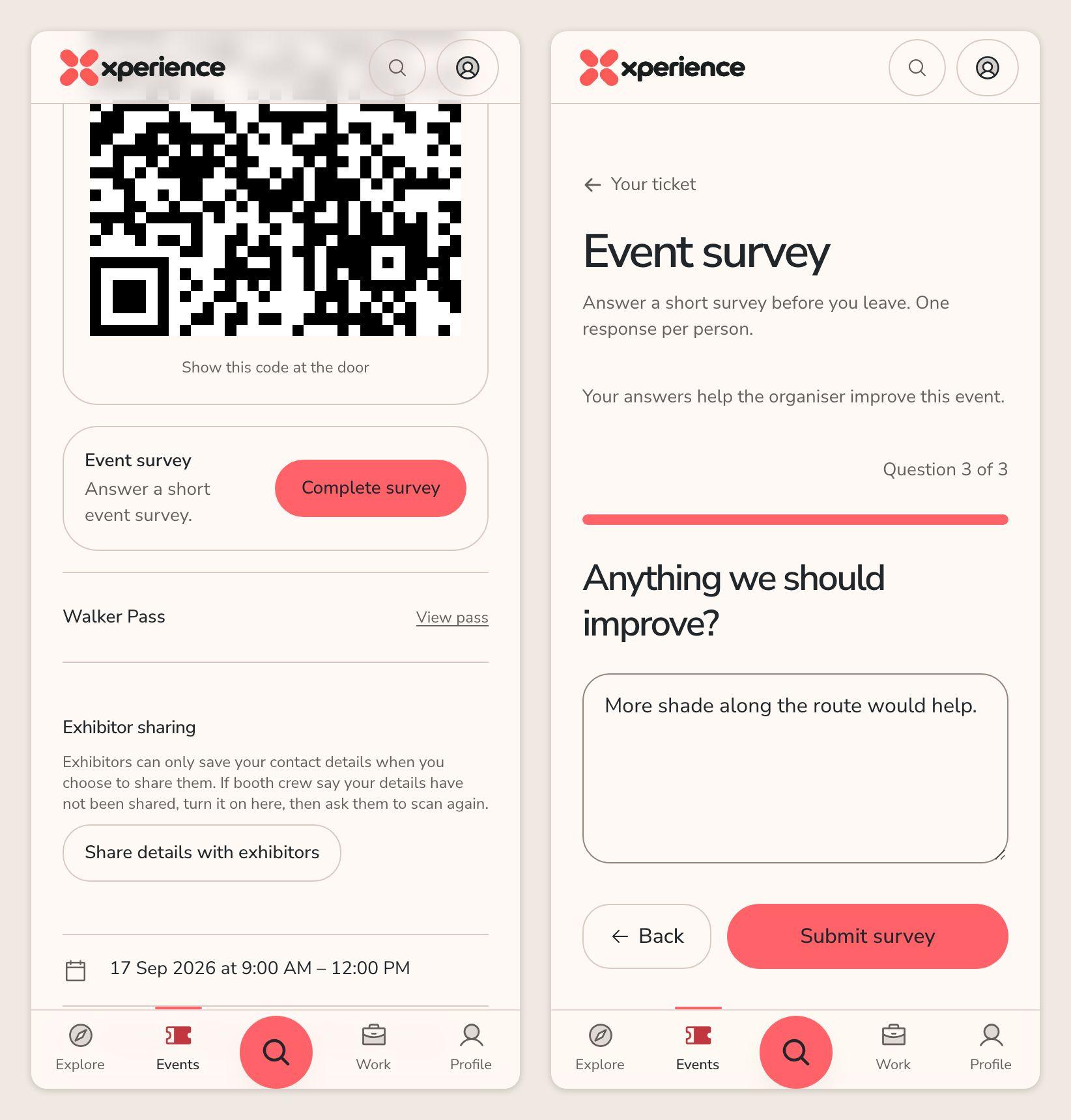
- Open your ticket hub. Under Event survey, choose Complete survey.
- Answer the questions and choose Submit survey. You get one response per person.
- If the event has prizes, you see your result after you submit. Otherwise you see Survey submitted.
- Not signed in? Choose Sign in and use the account you registered with.
Share your details with exhibitors
At events with exhibitors, sharing is off until you turn it on. On your ticket hub, under Exhibitor sharing, choose Share details with exhibitors. Tick the consent box, fill in your details and choose Save privacy settings. The page confirms Sharing is on. You can turn it off again at any time. The exhibitor guide explains what exhibitors then see.
Your account and deleting it
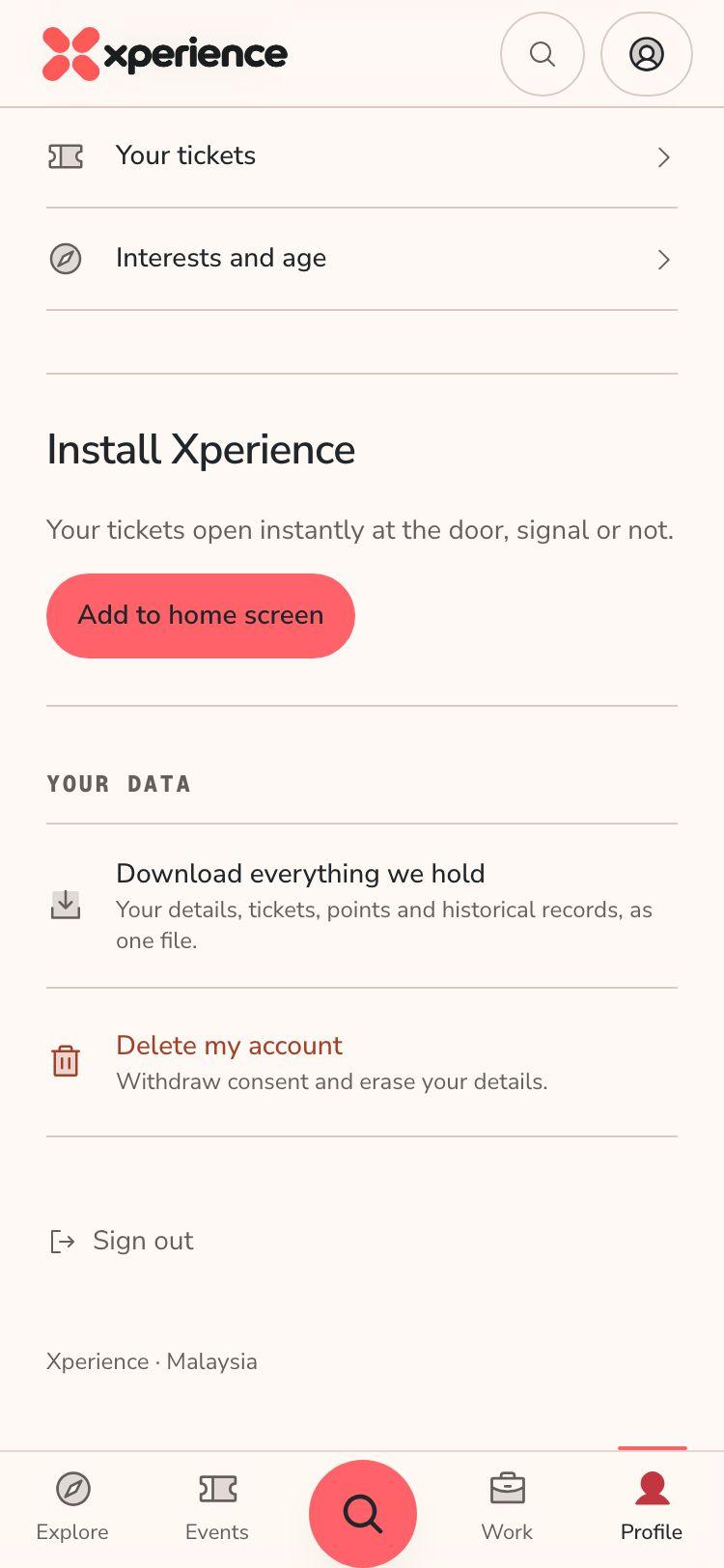
- Open Profile in the bottom bar. Find the Your data section.
- Choose Download everything we hold to get your details, tickets, points and historical records as one file.
- To delete your account, choose Delete my account, read the notice, then choose Delete my account permanently.
- Deleting cannot be undone. Your details are removed from the records organisers keep.
If this device still has scans that crew have not synced, the button changes to Delete account and preserve device scans. This keeps that unsynced data on the device so it can still sync later.
In the native app, open Profile. Use Export my data, Remove saved tickets from this device or Remove account, then Confirm removal.